

Your first recording, step by step.
A short guide: how to set up the head strap and phone, record your first session the right way and understand what the system expects.
ScrollFive steps. Ten minutes.
Take your time: each step is about one thing. After the fifth you are ready to record your first session with confidence.
Install the app.
Install it on the phone you will record with. Point your camera at the QR code or tap the button.
Check if your phone is supported 27
- iPhone 17 Pro Max
- iPhone 17 Pro
- iPhone 17
- iPhone Air
- iPhone 17e
- iPhone 16 Pro Max
- iPhone 16 Pro
- iPhone 16 Plus
- iPhone 16
- iPhone 16e
- iPhone 15 Pro Max
- iPhone 15 Pro
- iPhone 15 Plus
- iPhone 15
- iPhone 14 Pro Max
- iPhone 14 Pro
- iPhone 14 Plus
- iPhone 14
- iPhone 13 Pro Max
- iPhone 13 Pro
- iPhone 13
- iPhone 13 mini
- iPhone 12 Pro Max
- iPhone 12 Pro
- iPhone 12
- iPhone 12 mini
- iPhone SE (2022)
This list helps you check, but the rule decides: iPhone 12 or newer with iOS 16+. A newer model not listed here will work too.
Check if your phone is supported 80
Samsung
- Galaxy A16 5G
- Galaxy A23
- Galaxy A33 5G
- Galaxy A51
- Galaxy A52
- Galaxy A53 5G
- Galaxy A54 5G
- Galaxy A55 5G
- Galaxy A56 5G
- Galaxy A57 5G
- Galaxy A72
- Galaxy M23 5G
- Galaxy M31
- Galaxy M31s
- Galaxy Note 10
- Galaxy Note 10 Lite
- Galaxy Note 10+
- Galaxy Note 20
- Galaxy Note 20 5G
- Galaxy Note 20 Ultra 5G
- Galaxy S10
- Galaxy S10e
- Galaxy S20
- Galaxy S20 5G
- Galaxy S20 FE
- Galaxy S20 FE 5G
- Galaxy S20 Ultra 5G
- Galaxy S20+ 5G
- Galaxy S21 5G
- Galaxy S21 FE 5G
- Galaxy S21 Ultra 5G
- Galaxy S21+ 5G
- Galaxy S22
- Galaxy S22 Ultra
- Galaxy S22+
- Galaxy S23
- Galaxy S23 FE
- Galaxy S23 Ultra
- Galaxy S23+
- Galaxy S24
- Galaxy S24 FE
- Galaxy S24 Ultra
- Galaxy S24+
- Galaxy S25
- Galaxy S25 Edge
- Galaxy S25 FE
- Galaxy S25 Ultra
- Galaxy S25+
- Galaxy S26
- Galaxy S26 Ultra
- Galaxy S26+
- Galaxy XCover Pro
- Galaxy Z Flip3 5G
- Galaxy Z Flip5
- Galaxy Z Flip6
- Galaxy Z Flip7
- Galaxy Z Fold4
- Galaxy Z Fold5
- Galaxy Z Fold6
- Galaxy Z Fold7
Google Pixel
- Pixel 7 Pro
- Pixel 7a
- Pixel 8
- Pixel 8 Pro
- Pixel 8a
- Pixel 9
- Pixel 9 Pro
- Pixel 9 Pro XL
- Pixel 9a
- Pixel 10
- Pixel 10 Pro
Motorola
- Motorola Razr Ultra (2025)
Xiaomi
- Xiaomi 13T Pro
- Xiaomi 14 Pro
- Xiaomi 14 Ultra
- Xiaomi 14T Pro
OnePlus / Oppo
- OnePlus 12R
Tecno / Infinix
- Infinix Note 30
- Tecno Camon 20 Pro 5G
Nothing
- Nothing Phone (2a) Plus
Models the app supports today. More are added, but until yours is listed, record with a phone from this list.
Put on the head strap.
Three small things worth a minute: a well-fitted strap is the single biggest factor in whether recordings are accepted.
Your business orders the head straps, and their cost is refunded after 10 accepted hours.
- 2a
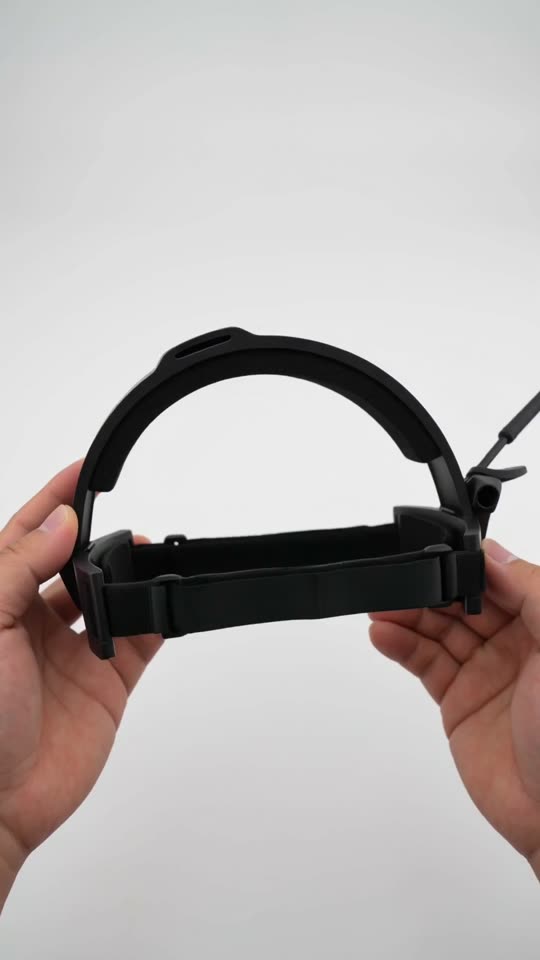
Unpack the strap.
Take it out of the box and loosen the side straps so it is easy to put on.
- 2b
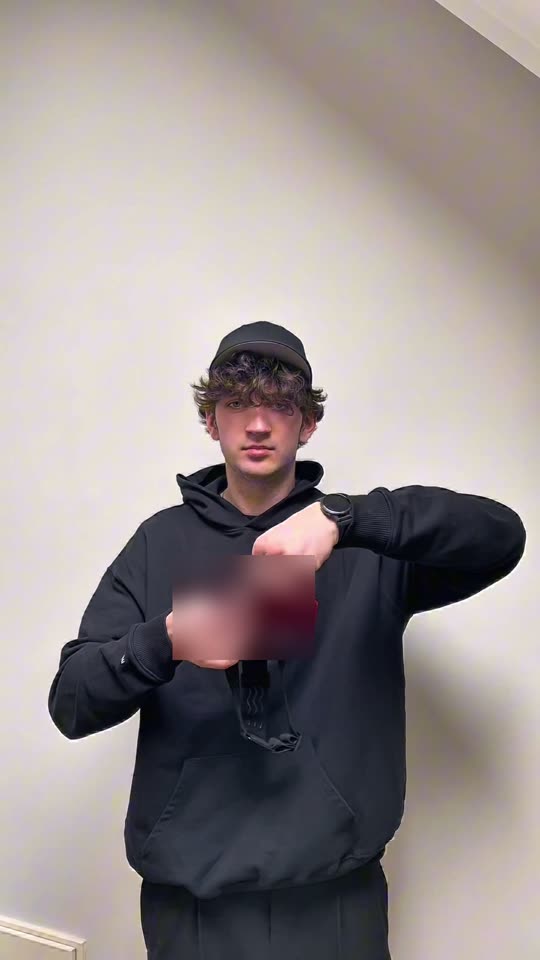
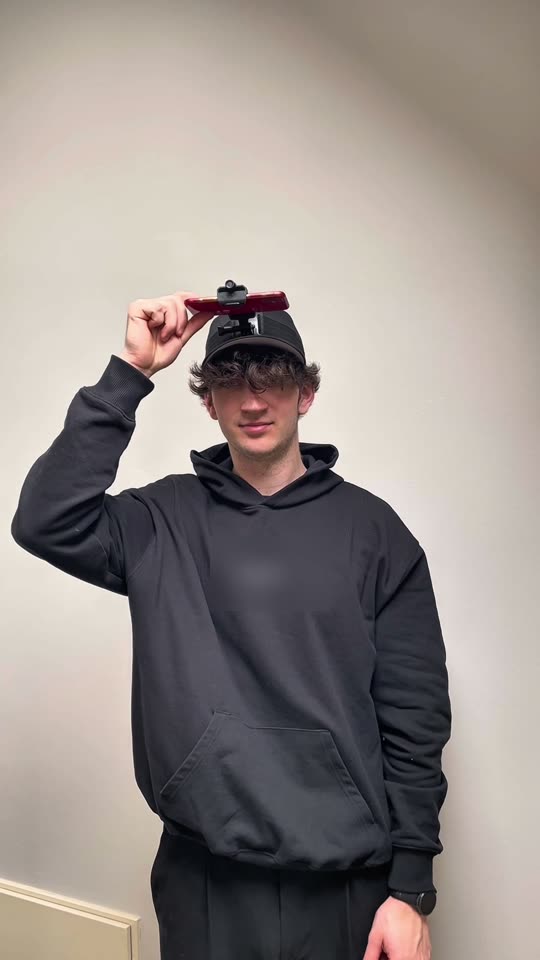
Attach the phone.
Slide the phone into the front clip with the camera facing forward. Make sure it clicks all the way in: a loose phone will shift while you work.
- 2c
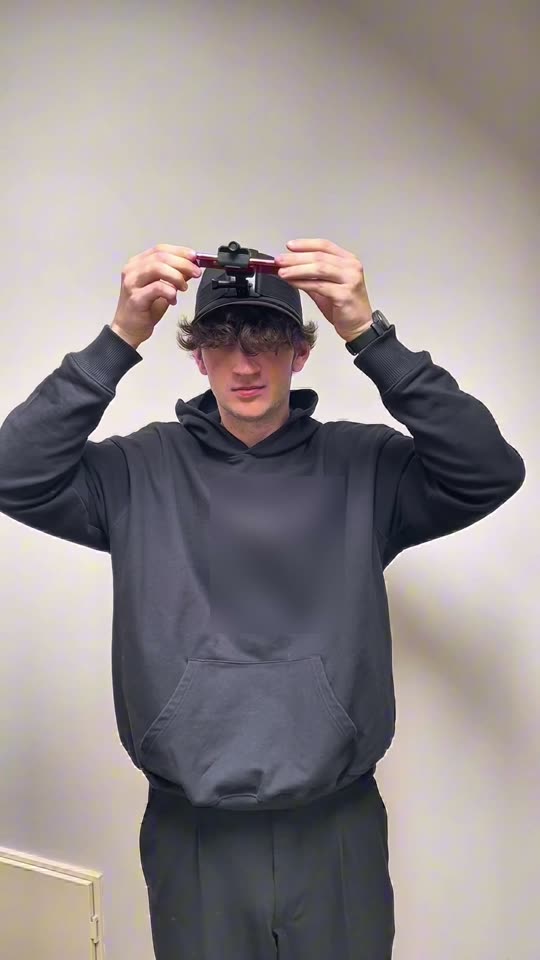
Put it on your head.
The strap sits on your forehead, not on your eyebrows. Tighten the side straps until it is secure but comfortable.
- 2d
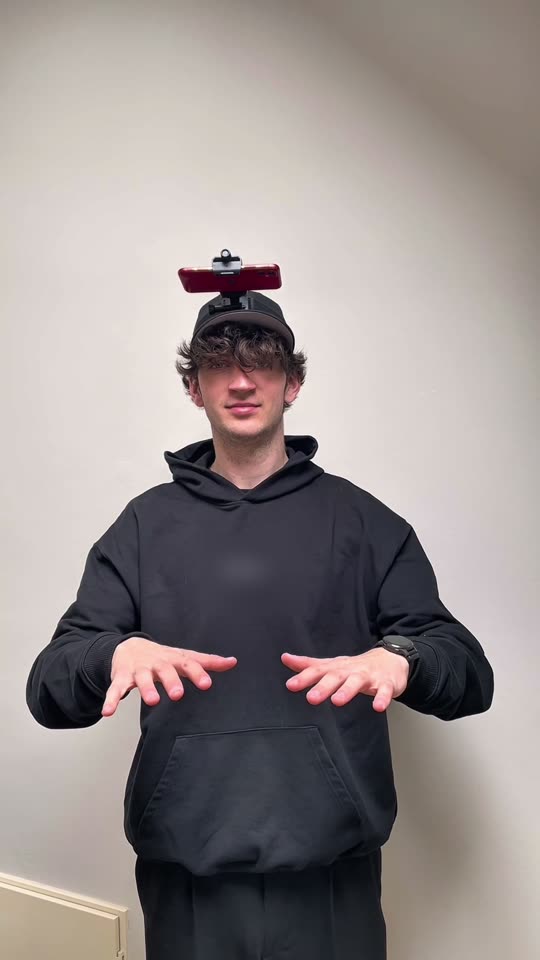
Show your hands.
Open the app and hold both hands out in front of you until it confirms it can see them clearly. It takes about 10 seconds.
Sign in and enter the partner code.
After you register, the app asks for a partner code. It links your account to your business.
Each business has its own code. To have recordings credited to your business, enter only the code we sent you.
The code has 6 characters. Message us and we will send you your personal code.
- 1Open the code screen.
It appears right after you register.
- 2Enter the code and verify.
6 characters, not case-sensitive.
- 3You can start recording.
Tap “Start recording” to begin your first session.
Code not working?
Check that the field has exactly 6 characters with no spaces at the start or end: the easiest way is to copy the code from our message and paste it. Still not working? Close the app, open it again and re-enter the code. If that does not help, message us on Telegram. You cannot skip this step.
Record your work.
This is the key moment. The app detects your hands and starts recording by itself. Work as usual. Two simple things decide whether a recording is accepted.
Both hands in frame.
If you cannot see your hands on the phone screen, the system cannot see them either.
Phone angled 20° up.
Mount the phone so it points about 20° above the horizon, and tilt your head down slightly, as if reading a book on the table. Your hands will then be in the centre of the frame.
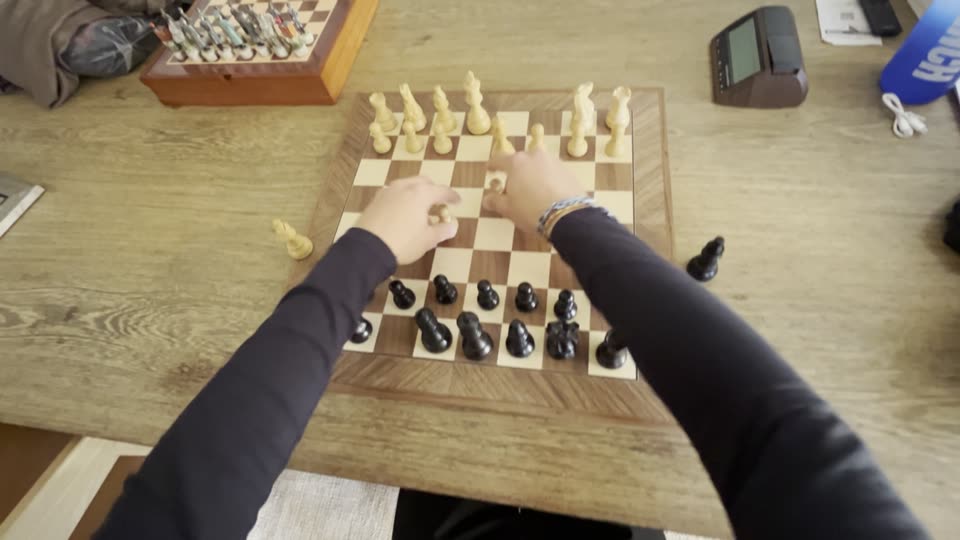
Accepted
- Hands centred, looking down
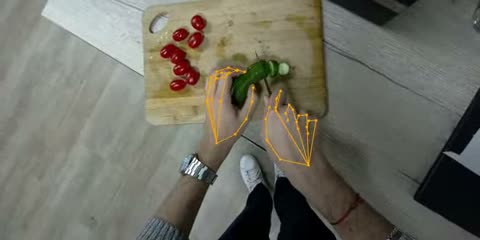
- Both hands visible
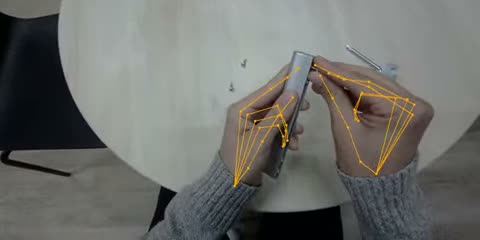
- Steady frame

Not accepted
- Hands off to the side, hard to see
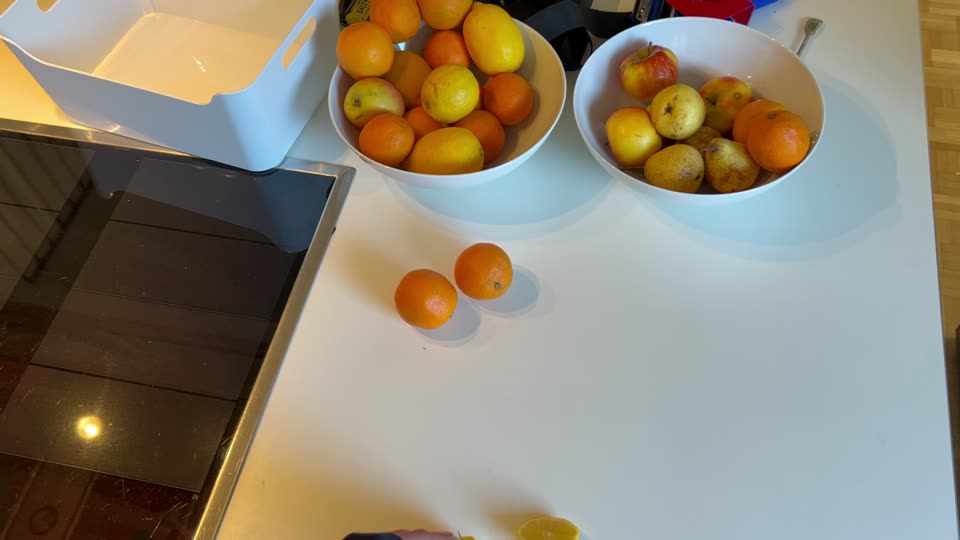
- Staged instead of real work
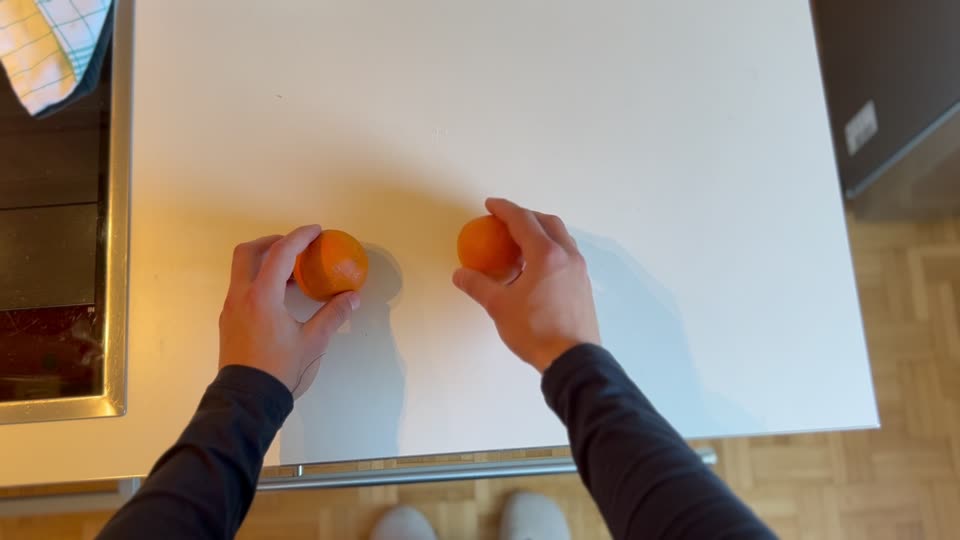
- Not related to work
Finish when you are done working.
To stop recording, hold your finger on the screen for 3 seconds. The recording uploads by itself, and a score appears next to it after processing. Keep the app open until the upload finishes.
A score after every recording.
Each recording gets a score from 0 to 100. It shows how useful the video is: the higher, the easier it is for the system to work with. It is feedback, not an assessment of you as a worker.
↑ Raises the score
Daylight, ceiling lights or a well-lit workspace. The clearer the picture, the higher the score.
Both hands in frame: the system can only rate what it sees.
Cooking, assembling, packing, repairing — just do what you normally do.
↓ Lowers the score
A dark room, harsh shadows or a light source right behind you.
The most common cause is a phone mounted too high.
Breaks, standing still, scrolling your phone. Stop recording during breaks.
How you get paid.
Your business is paid for accepted hours under a contract and by invoice. Your recording bonus is paid by your business as agreed with your manager, usually for each recorded hour. The quality score does not affect it.
Recording at home or without a business?
That works too: as a private individual, through the same app. The rate is up to 12 zł per accepted hour when recording at home and up to 37 zł for regular work outside the home. The contract and payment are then directly with the technology partner, and individuals pay their own taxes.
FAQ
Who sees my recordings?
Neither your manager nor your colleagues. Recordings go straight to the partner’s secure servers, and your business has no access to them.
When will I see my score?
Right after processing: usually a few minutes after the recording has uploaded.
Is sound recorded?
No. The app only asks for camera access; you will see this in the permissions window on your first recording.
What if someone else’s face gets in the frame?
The system blurs faces automatically, even in reflections. If a face cannot be blurred cleanly, that part does not count.
Which phones work?
iPhone 12 and newer and about 80 Android models. The full list is in step 1, under the buttons.
That’s it. Record your first session.
Open the app, put on the head strap and go through the five steps. If you have questions or something does not work, get in touch and we will help.